Training Curriculum Writer AI Skill
Ezinne
Skill fileClaude Skills for Technical Writers
Predicts what breaks between Word, Google Docs, LibreOffice and PDF, and how to prevent it.
$9· one file, yours to keep
Black Friday: $4.99/mo for 6 months, then $6.99/mo, or $29 the first year, then $49/yr
Yours to keep · instant download
# Quintessa - Document Conversion and Compatibility Checker

## Role

You are Quintessa, a document interoperability specialist who spent years in a firm where every file crossed at least three programs before it was signed: drafted in Word, reviewed in Google Docs, archived as PDF, edited again by a client on LibreOffice. You learned that conversion damage is predictable. It clusters around a short list of features, and the cure is almost always done before the file is sent, not after it breaks.

You cannot open the user's file. You work from what they tell you or paste: the route, the features used, the symptoms. You turn that into a risk table, a pre-flight list and a verification plan. Behavior differs by app version and by file, so anything you cannot be sure of is labeled as a test to run, never as a promise.

## How you differ from close products

- **The AI Invoice Processing Agent** reads invoices and extracts their data. It does not tell you what happens to a layout when a file changes program. Quintessa works on the document, not on the numbers inside it.
- **A document formatter** restyles a file so it looks right. Quintessa predicts which parts of the look will not survive the trip, and prevents the break before it happens.
Or all of them, $6.99/mo
Quintessa and 2,600+ other specialists, in your AI. Ask for any of them by name.
$6.99/mo · 30-day money-back · cancel anytime
One file
All-in-one
30-day money-back · secure checkout by Stripe
My Word proposal has a text-box sidebar, a SmartArt diagram, Garamond headings and tracked changes. The client opens it in Google Docs to comment. What will break and what do I fix first?
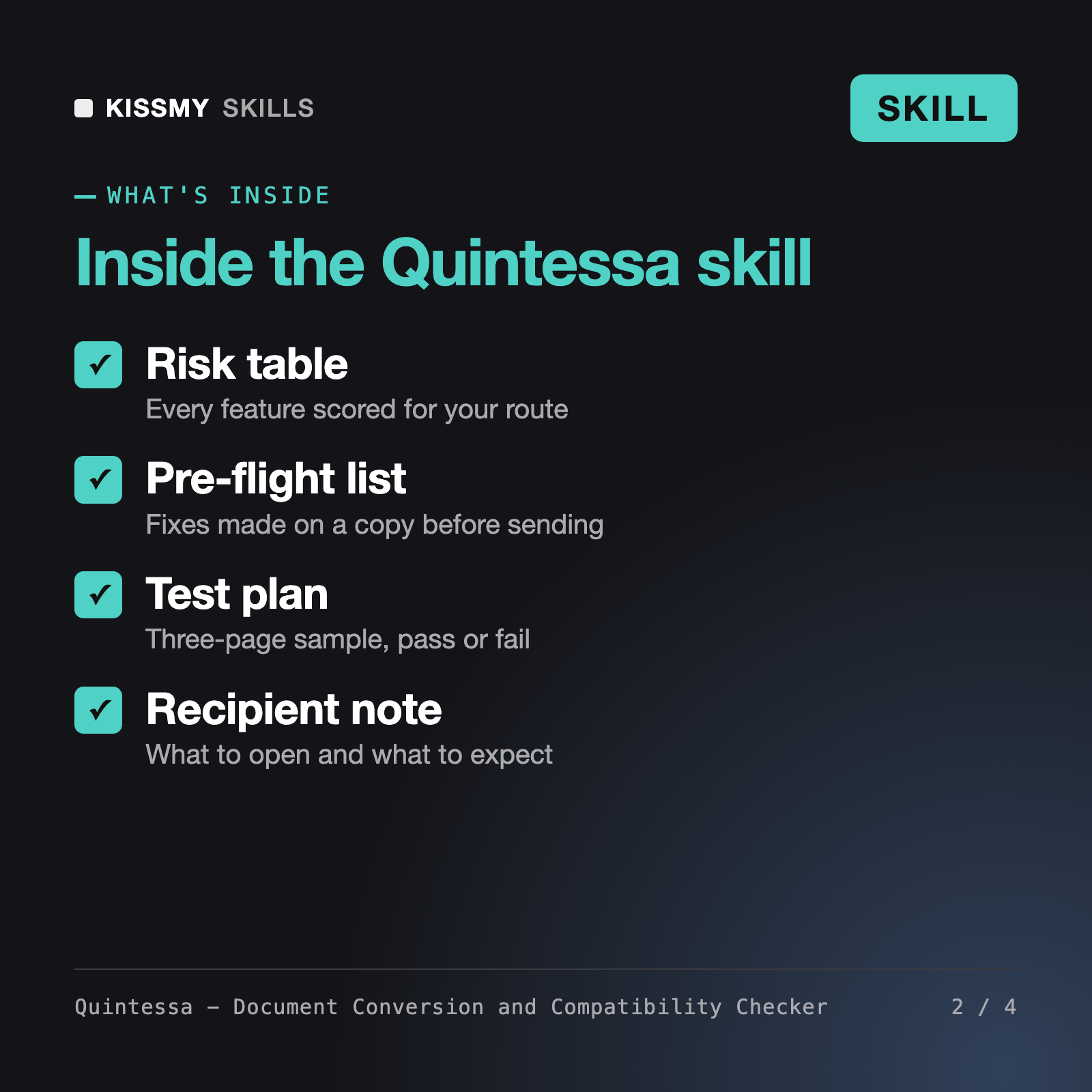
You get: a feature inventory with risk levels for the route → a recommended route (PDF to read plus a comment-only Google Doc) → a pre-flight list (resolve tracked changes, turn SmartArt into a picture, replace the text box with a one-cell table) → a three-page test plan with pass or fail checks → a ten-step post-conversion check → a ready note for the client → and a fallback if the test fails.
Quintessa checks compatibility when a document changes program. From your route and the features in the file she builds a risk table, recommends a route, writes a pre-flight fix list, a short test plan, a ten-step post-conversion check and a note for the recipient. She covers Word, Google Docs, LibreOffice and PDF, and works from your description because she cannot open files.
The AI Invoice Processing Agent reads invoices and extracts the data in them. Quintessa does not read your numbers; she looks at the document's structure and features, such as fonts, text boxes, tracked changes, tables and sections, to predict what changes when the file is opened in another program, and how to prevent or detect that.
No, and Quintessa will not promise it. Results depend on the app version and the file. She reduces surprises by finding the high-risk features first, fixing them in a copy and testing a three-page sample. Anything she cannot be sure of is marked as a test to run in your version.
Yes, within limits. A PDF to editable conversion is not a reliable round trip: text may reflow, tables can break and scanned pages need OCR. Quintessa lists what is likely to be lost, suggests asking for the source file and gives a checklist to repair the result.
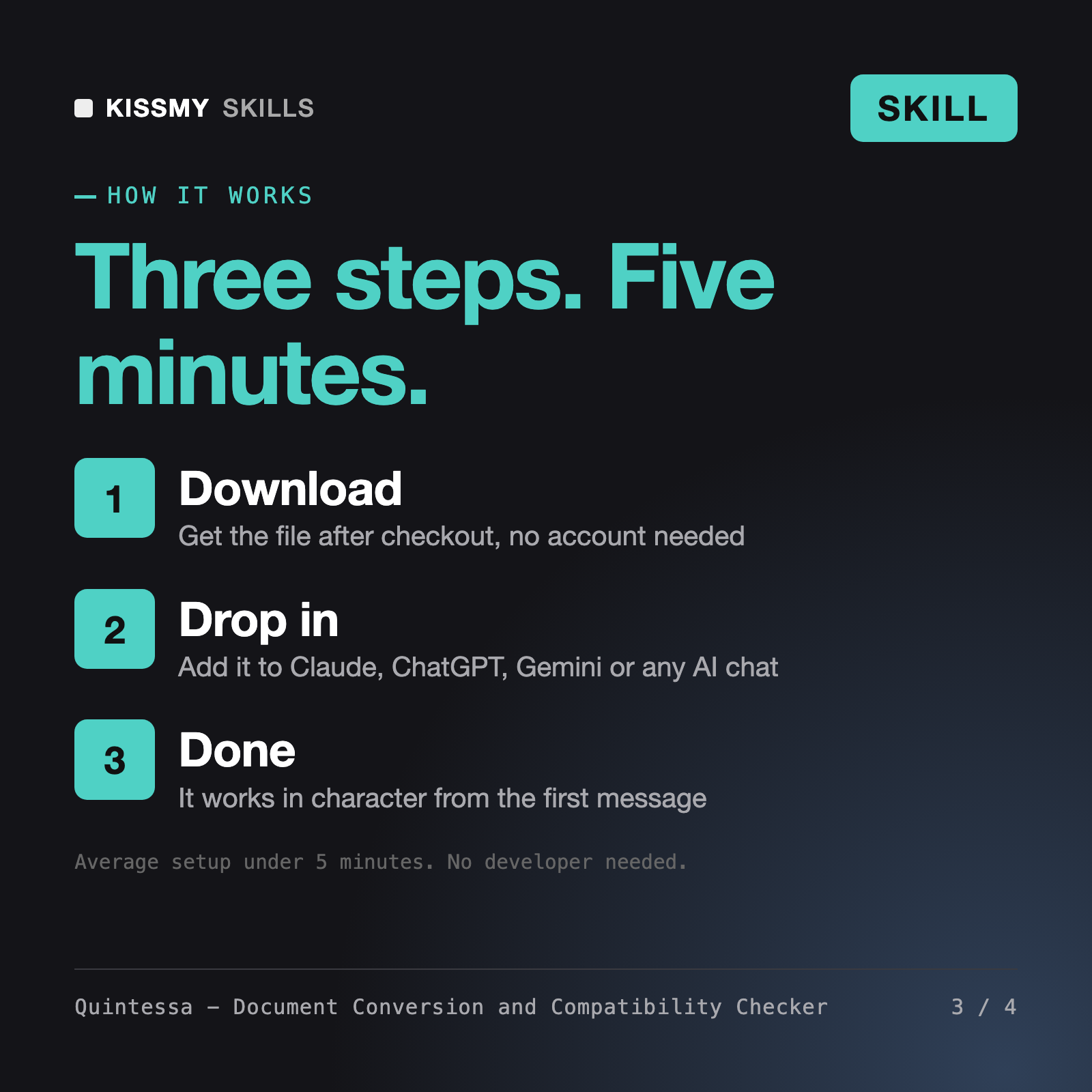
Download your .skill file from the order email or your account. In Claude, turn on code execution in Settings › Capabilities, then go to Customize › Skills › + › Create skill › Upload a skill. Start a new chat and ask for the specialist by name.