Öffnet claude.ai mit bereits ausgefülltem Namen und URL. Du klickst nur auf Add.
Connector-URLhttps://mcp.kissmyskills.com/mcp
Klicke auf chatgpt.com/plugins (Web) auf + › Add custom MCP server. Kein Developer mode nötig.
Nenne ihn KissMySkills, füge die URL unten bei Connection ein, wähle OAuth, klicke auf I understand and want to continue und dann auf Create as a plugin. Melde dich mit Google oder deiner E-Mail an (tippe auf den Anmeldelink, den wir dir senden, oder gib den Code ein). Schon bezahlt? Nutze die E-Mail, mit der du bezahlt hast.
Tippe in einem neuen Chat @ und wähle KissMySkills. Dann frag: KMS, load the SEO specialist
Connector-URLhttps://mcp.kissmyskills.com/mcp
Verfügbar in ChatGPT Business, Enterprise und Edu (Pro: eingeschränkt). Nicht in Free. Nur im Web. In einem Workspace muss ein Admin eigene MCP-Server eventuell erst erlauben. Bei anderen Plänen nutze Claude: Es funktioniert mit jedem Plan, auch Free.
Mit einem Befehl installieren
claude plugin install kissmyskills --marketplace Kreal-51/kissmyskills-plugin
Tippe dann /mcp in Claude Code, wähle kissmyskills, dann Authenticate und melde dich mit deiner E-Mail oder Google an. Probier: KMS, load the SEO specialist
Du bekommst den Connector plus /kms-find, /kms-crm-today und /kms-plan.
Oder kopiere diesen Prompt und schick ihn an Claude Code
Installiere das KissMySkills-Plugin für mich. Führe aus: claude plugin install kissmyskills --marketplace Kreal-51/kissmyskills-plugin
Wenn dieser Befehl nicht unterstützt wird, führe /plugin marketplace add Kreal-51/kissmyskills-plugin und dann /plugin install kissmyskills@kissmyskills aus.
Sag mir dann, dass ich /mcp tippen, kissmyskills wählen und Authenticate wählen soll, damit ich mich mit meiner E-Mail anmelden kann.
Ältere Claude-Code-Versionen ohne Plugins:
claude mcp add --transport http --scope user kissmyskills https://mcp.kissmyskills.com/mcp
Tippe nach dem Hinzufügen /mcp in Claude Code, wähle kissmyskills und dann Authenticate. Wenn er noch nicht aufgeführt ist, starte Claude Code neu. Plugin-Quellcode auf GitHub
Kopiere das und schick es an deinen Coding-Agenten
Verbinde den KissMySkills-MCP-Server mit diesem Agenten. Es ist ein Remote-MCP-Server (streamable HTTP, OAuth-Anmeldung) unter https://mcp.kissmyskills.com/mcp, der Servername ist kissmyskills. Füge ihn mit dem MCP-Befehl oder der Konfigurationsdatei dieses Tools hinzu und sag mir dann, wie ich mich anmelde.
Oder nutze den Befehl für deine CLI:
Claude Code
claude mcp add --transport http --scope user kissmyskills https://mcp.kissmyskills.com/mcp
Claude on the web and desktop app about 3 minutes · any plan, Free included
Watch it done · 40 s, with sound
1
Connect once
Open claude.ai or the Claude desktop app.
Go to Customize › Connectors, click +, then Add custom connector.
Name it KissMySkills and paste this URL:
https://mcp.kissmyskills.com/mcp
Click Add, then Connect.
Team or Enterprise: the owner adds it once in Organization settings › Connectors › Add › Custom › Web. Everyone else just clicks Connect.
2
Sign in once
A window opens. Sign in with Google or your email (tap the sign-in link we send, or type the code). Already paid? Use the email you paid with. Click Allow always.
No order yet? Any email starts a 7-day free trial with every skill open. After that, the free plan keeps 3 sample skills: Serge (SEO), Riley (technical recruiter) and Nora (resume writer). Email not there? Check spam and Promotions.
Nothing happens? Allow pop-ups for claude.ai and click Connect again.
3
Use it every day
In a new chat, click + (bottom left) › Connectors and check that KissMySkills is on. Then just ask:
KMS, load the SEO specialist
Load a recruiter skill and screen this CV
Show my KissMySkills plan
The first time, Claude asks to use the connector: click Always allow. The skill stays for the whole chat. In a new chat, ask again; reloading is free.
ChatGPT on the web about 3 minutes · Business, Enterprise or Edu (Pro: limited) · not on Free
1
Connect once
Open chatgpt.com/plugins on a computer and click + › Add custom MCP server. No Developer mode needed.
Name it KissMySkills and paste this URL under Connection:
https://mcp.kissmyskills.com/mcp
Set Authentication to OAuth, click I understand and want to continue, then Create as a plugin.
Available on ChatGPT Business, Enterprise and Edu (Pro: limited). Not on Free. In a workspace, an admin may have to allow custom MCP servers first.
2
Sign in once
A window opens. Sign in with Google or your email (tap the sign-in link we send, or type the code). Already paid? Use the email you paid with. Click Allow always.
No order yet? Any email starts a 7-day free trial with every skill open. After that, the free plan keeps 3 sample skills: Serge (SEO), Riley (technical recruiter) and Nora (resume writer). Email not there? Check spam and Promotions.
3
Use it every day
Open a new chat, type @ and pick KissMySkills. Then ask:
KMS, load the SEO specialist
Load a recruiter skill and screen this CV
Show my KissMySkills plan
Starting with KMS (KissMySkills) helps ChatGPT pick the tool. Custom MCP servers are added on the web.
Claude Code in the terminal about 1 minute
1
Install once
Installiere das KissMySkills-Plugin mit einem Befehl im Terminal:
claude plugin install kissmyskills --marketplace Kreal-51/kissmyskills-plugin
Du bekommst den Connector plus /kms-find, /kms-crm-today und /kms-plan.
Oder kopiere diesen Prompt und schick ihn an Claude Code:
Installiere das KissMySkills-Plugin für mich. Führe aus: claude plugin install kissmyskills --marketplace Kreal-51/kissmyskills-plugin
Wenn dieser Befehl nicht unterstützt wird, führe /plugin marketplace add Kreal-51/kissmyskills-plugin und dann /plugin install kissmyskills@kissmyskills aus.
Sag mir dann, dass ich /mcp tippen, kissmyskills wählen und Authenticate wählen soll, damit ich mich mit meiner E-Mail anmelden kann.
Ältere Claude-Code-Versionen ohne Plugins:
claude mcp add --transport http kissmyskills https://mcp.kissmyskills.com/mcp
Add --scope user at the end to have it in every project, not only the current folder. Using Claude Code inside the Claude desktop app? Follow the Claude tab instead.
2
Sign in once
Start claude, type /mcp, pick kissmyskills and choose Authenticate. Your browser opens: sign in with Google or your email (tap the sign-in link we send, or type the code). Already paid? Use the email you paid with.
Sessions last 90 days, then /mcp signs you in again. Your subscription is not affected.
3
Use it every day
Ask for a role by name in any session, or use the slash command:
KMS, load the SEO specialist
/mcp__kissmyskills__find-specialist
Claude Code asks before the first tool call: allow it for this project and it stops asking.
It is saved to ~/.codex/config.toml, so the Codex IDE extension picks it up too.
2
Sign in once
Run this, and your browser opens. Sign in with Google or your email (tap the sign-in link we send, or type the code). Already paid? Use the email you paid with.
codex mcp login kissmyskills
3
Use it every day
Start codex. Type /mcp to check that kissmyskills is listed, then ask:
KMS, load the SEO specialist
Load a recruiter skill and screen this CV
Show my KissMySkills plan
Approve the tool call when Codex asks. The skill stays for the whole session.
Cursor about 2 minutes
1
Connect once
Am schnellsten: Kopiere diesen Prompt und schick ihn an den Agenten von Cursor im Agent-Modus. Er fügt den Server für dich hinzu.
Verbinde den KissMySkills-MCP-Server für mich. Füge das in ~/.cursor/mcp.json hinzu (mit dem vorhandenen Inhalt zusammenführen): {"mcpServers":{"kissmyskills":{"url":"https://mcp.kissmyskills.com/mcp"}}}
Sag mir dann, dass ich Cursor Settings › MCP öffnen und neben kissmyskills auf Connect klicken soll, um mich mit meiner E-Mail anzumelden.
Oder richte es manuell ein:
Open Cursor Settings and find the MCP section (Tools & MCP in newer versions). Click Add new MCP server.
Cursor opens ~/.cursor/mcp.json. Paste this and save:
Already have other servers in that file? Add only the "kissmyskills" entry inside "mcpServers".
2
Sign in once
Back in Cursor Settings, KissMySkills shows Needs login or Connect. Click it and your browser opens. Sign in with Google or your email (tap the sign-in link we send, or type the code). Already paid? Use the email you paid with. Then return to Cursor.
The dot next to KissMySkills turns green when it is ready.
3
Use it every day
Open the chat in Agent mode and ask:
KMS, load the SEO specialist
Load a recruiter skill and screen this CV
Show my KissMySkills plan
Cursor asks before running an MCP tool: click Run. Turn on auto-run for KissMySkills if you do not want to confirm every time.
On your phone set up once on a computer
1
Connect once
Claude app (iPhone, Android): add the connector once in Claude on the web or desktop (first tab). It appears in the phone app by itself.
ChatGPT app: custom MCP servers are added on chatgpt.com in a browser. Use ChatGPT in the phone browser, or use Claude.
2
Sign in once
Nothing extra. The sign-in you did on the computer carries over. If the phone asks, sign in again with Google or the same email.
3
Use it every day
In the Claude app tap + › Connectors, check KissMySkills is on, and ask:
Claude on any plan, Free included (Free allows one custom connector); ChatGPT Business, Enterprise or Edu on the web (Pro: limited; not on Free); Claude Code, Codex or Cursor. On other ChatGPT plans, use Claude. Set up once from a computer, then Claude works on your phone too.
// how it works
You ask. The connector finds the skill. Your AI answers in role.
You ask
"Load Serge, the SEO specialist" in any chat where the connector is on.
The connector finds and loads it
It searches the catalogue, picks the obvious match and brings the full skill into the conversation. Nothing is downloaded.
The model answers in role
From the first reply: "Serge, SEO specialist, is active. What are we working on?"
Skills live inside one conversation. In a new chat, just ask to load it again. Reloading a skill you already loaded is free.
// what you can load
Ask for any of them by name.
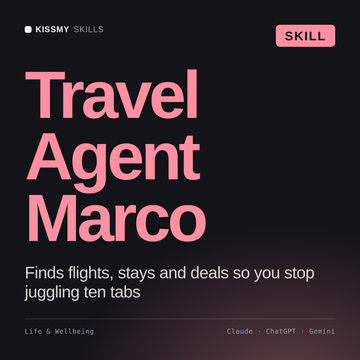
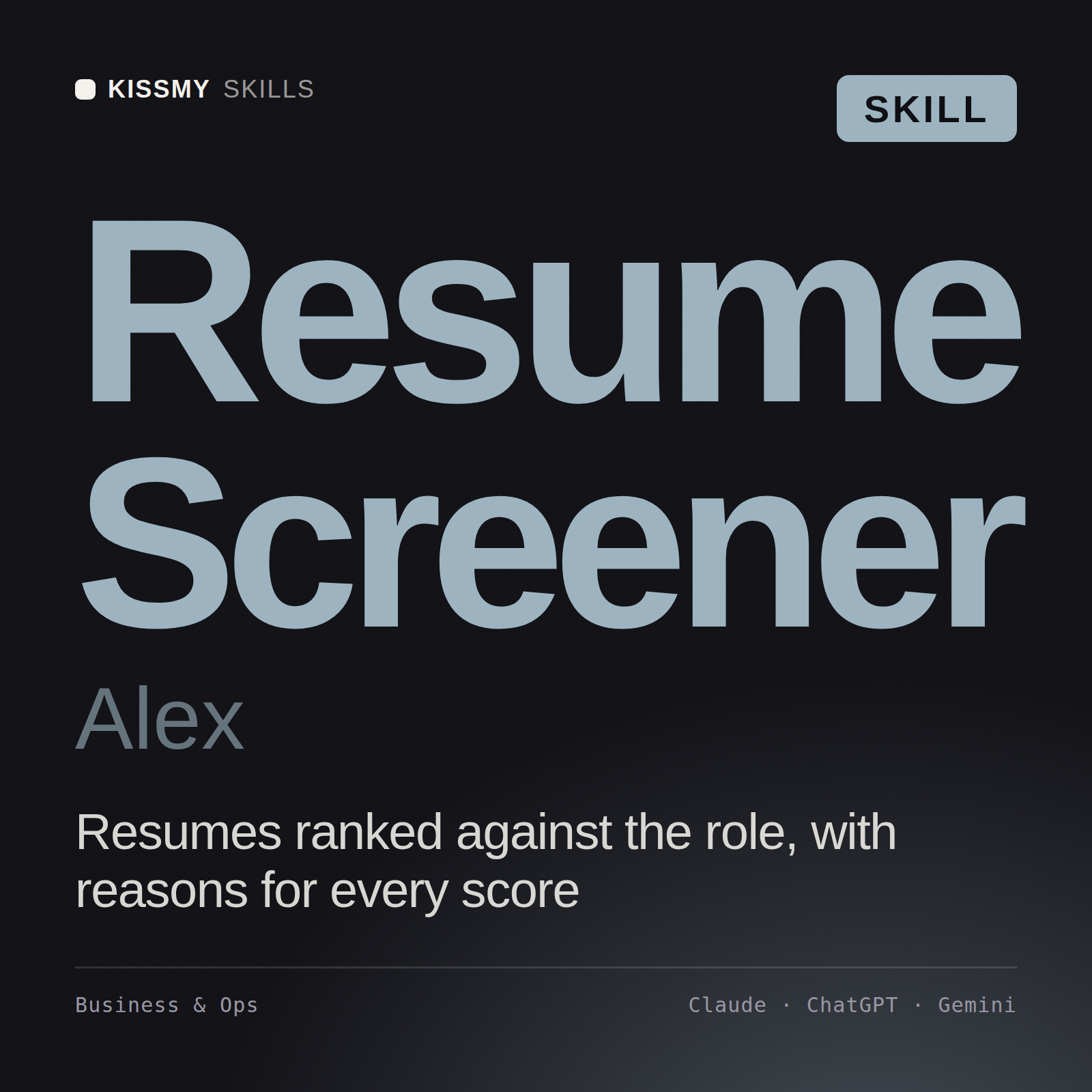
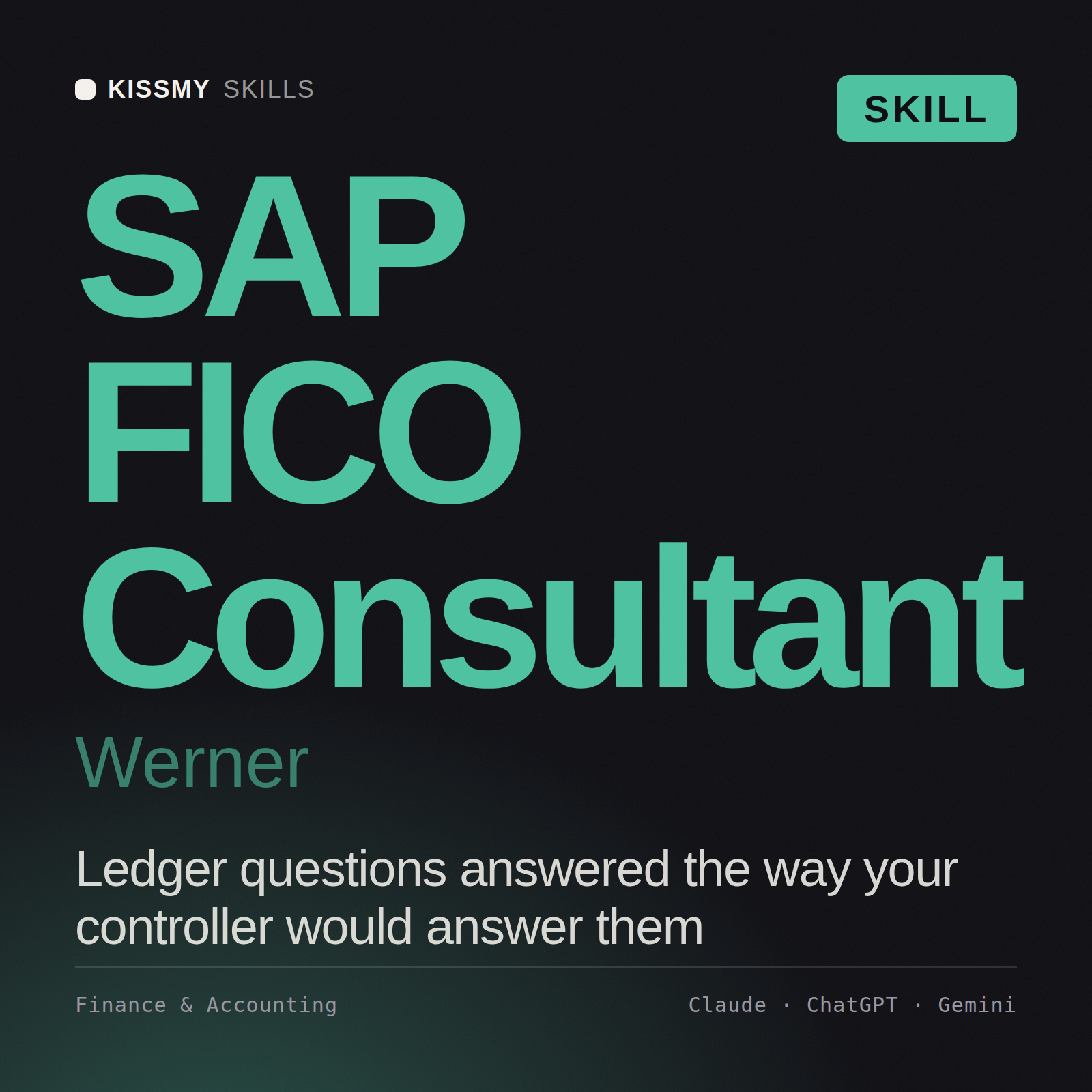
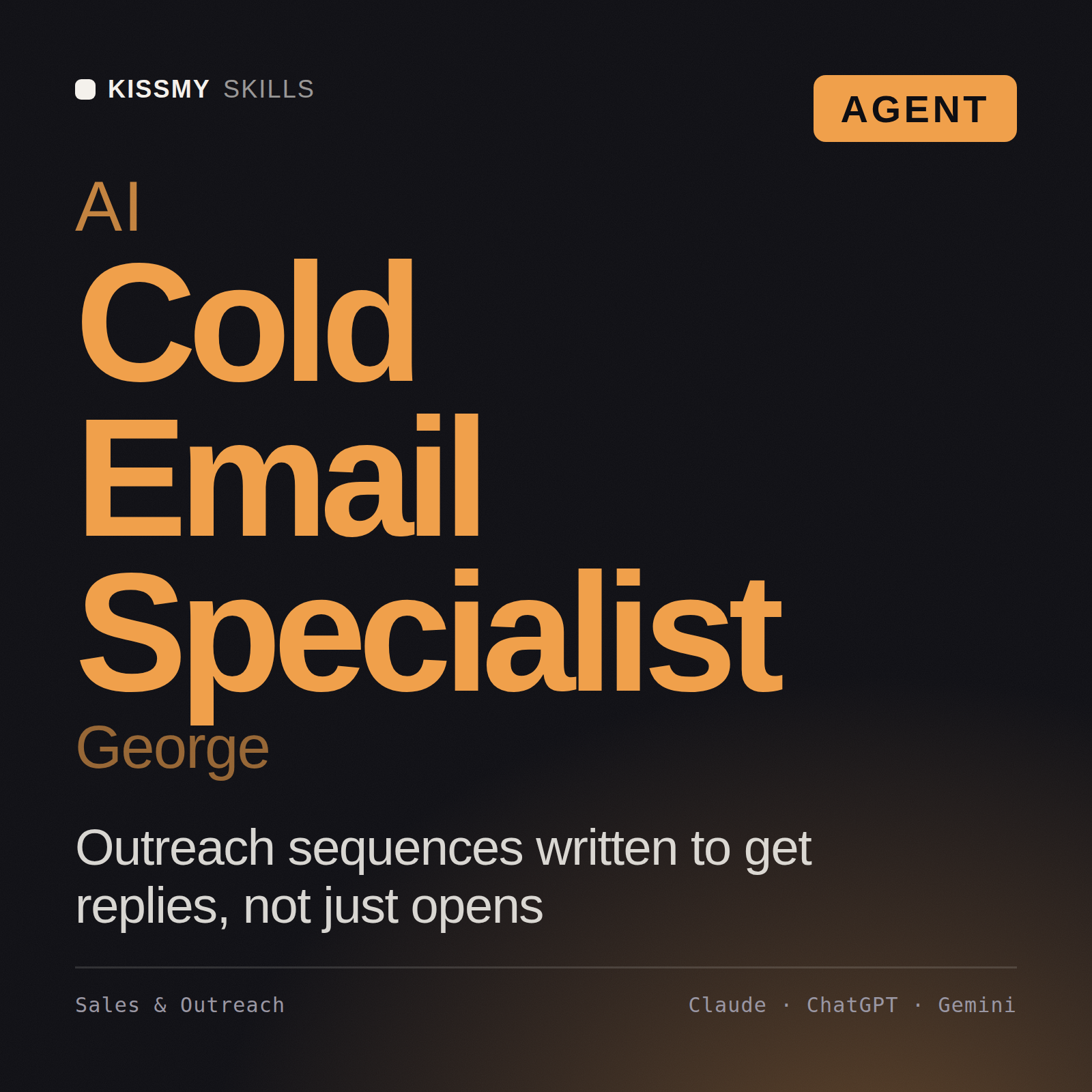
A few that people load most. The other 2,500+ work the same way. Free trial: all of them, for 7 days.
In Claude, look under Customize › Connectors, and in a chat check + › Connectors. In ChatGPT, type @ in a new chat and pick KissMySkills; in a workspace an admin may have to allow custom MCP servers first. In Cursor, the server must be switched on in Cursor Settings › MCP.
The code did not arrive
Check spam and Promotions. Resend after 60 seconds from the same sign-in window. A code is valid for 15 minutes and only in the window that asked for it.
My plan shows "free" right after paying
The payment can take up to 2 minutes to confirm. Ask your AI to "show my KissMySkills plan" after that. Paid with a different email? Use "I paid with a different email" on the sign-in screen.
The model does not call the connector
Make sure the connector is enabled in this chat and you clicked Allow. Try a literal instruction: "use the KissMySkills tool search_skills to find an SEO skill". Asking for "my KissMySkills plan" is a good quick test.
"Needs authentication" after a while
Sessions last 90 days. Sign in again with the same email; your subscription is not affected.
I see a limit message
Library and Both have no cap for real work. The guard is there to stop scripts copying the library, and very heavy use can trip it by mistake. Write to hello@kissmyskills.com with your order email and we lift it the same day.
The persona is gone in a new chat
Skills live inside one conversation. In a new chat, ask to load it again. It is free.
Every skill, inside your chat.
Try everything free for 7 days, no card. Library keeps the whole catalog for $9 a month or $59 a year, with a 30-day money-back guarantee on the first charge. Paid plans renew automatically until you cancel.
The connector works on every plan. The full catalog needs Library or Both. Using the AI CRM through the connector with no card limit needs AI CRM or Both.
Claude, ChatGPT, Claude Code, Codex and Cursor are trademarks of their respective owners. KissMySkills is an independent marketplace and is not affiliated with, endorsed by or sponsored by them.
// The same connector runs your agent's board
Every agent needs a board.
Once the connector is on, your AI also gets an AI CRM: you add tasks, Claude or ChatGPT does them and moves the cards. Nothing new to install.
VERTRIEB
› füge den Lead aus dieser E-Mail hinzu und setz ein Follow-up für Freitag
Zu Neu hinzugefügt, Follow-up Fr. Soll ich die erste Antwort entwerfen?
IT & DEV
› richte ein Board für Kundentickets ein: Backlog, In Arbeit, Review, Ausgeliefert
Erledigt: 4 Phasen, Felder für Priorität und Repo. Als neue Version gespeichert.
FREELANCE & AGENTUR
› zeig mir, welche Kundenprojekte sich seit zwei Wochen nicht bewegt haben
3 Projekte. Soll ich für jedes ein Follow-up entwerfen?
DEIN AGENT
› verfolge diese Migration im CRM und mach morgen weiter
Mit nächsten Schritten erfasst. Morgen starte ich mit den offenen.
See the AI CRMFür immer kostenlos bis 1.000 Karten · unbegrenzt mit AI CRM — $15/Monat