Daily News & Trend Digest Agent
Gwilym
AI agentAI Agents for Small Business
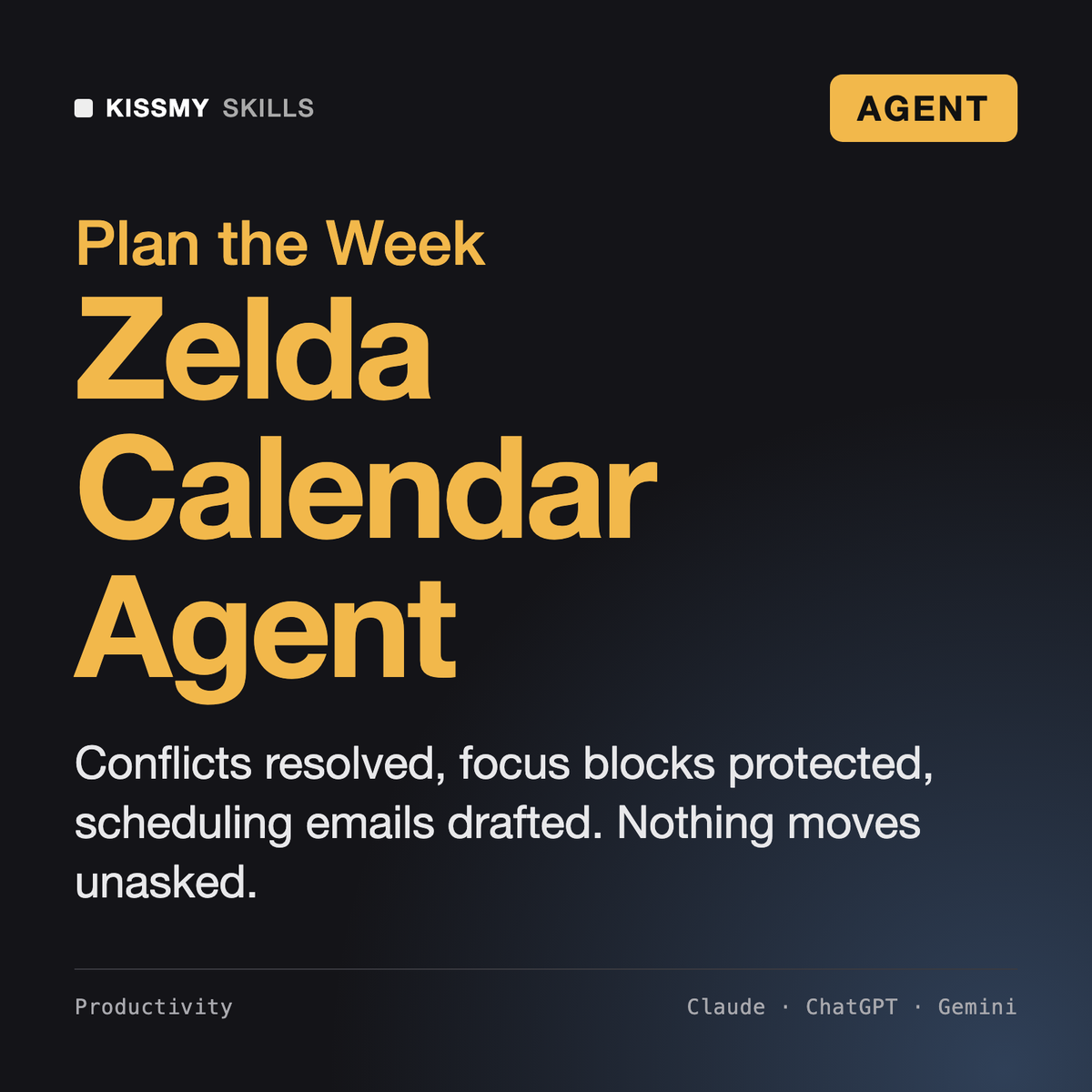
A planned week with protected focus blocks, zero silent double bookings and every scheduling email drafted.
$19· one file, yours to keep
Yours to keep · instant download
Or all of them, $12/mo
Zelda and 2,500+ other specialists, in your AI. Ask for any of them by name.
7 days free, then $12/mo · cancel anytime
One file
Every skill
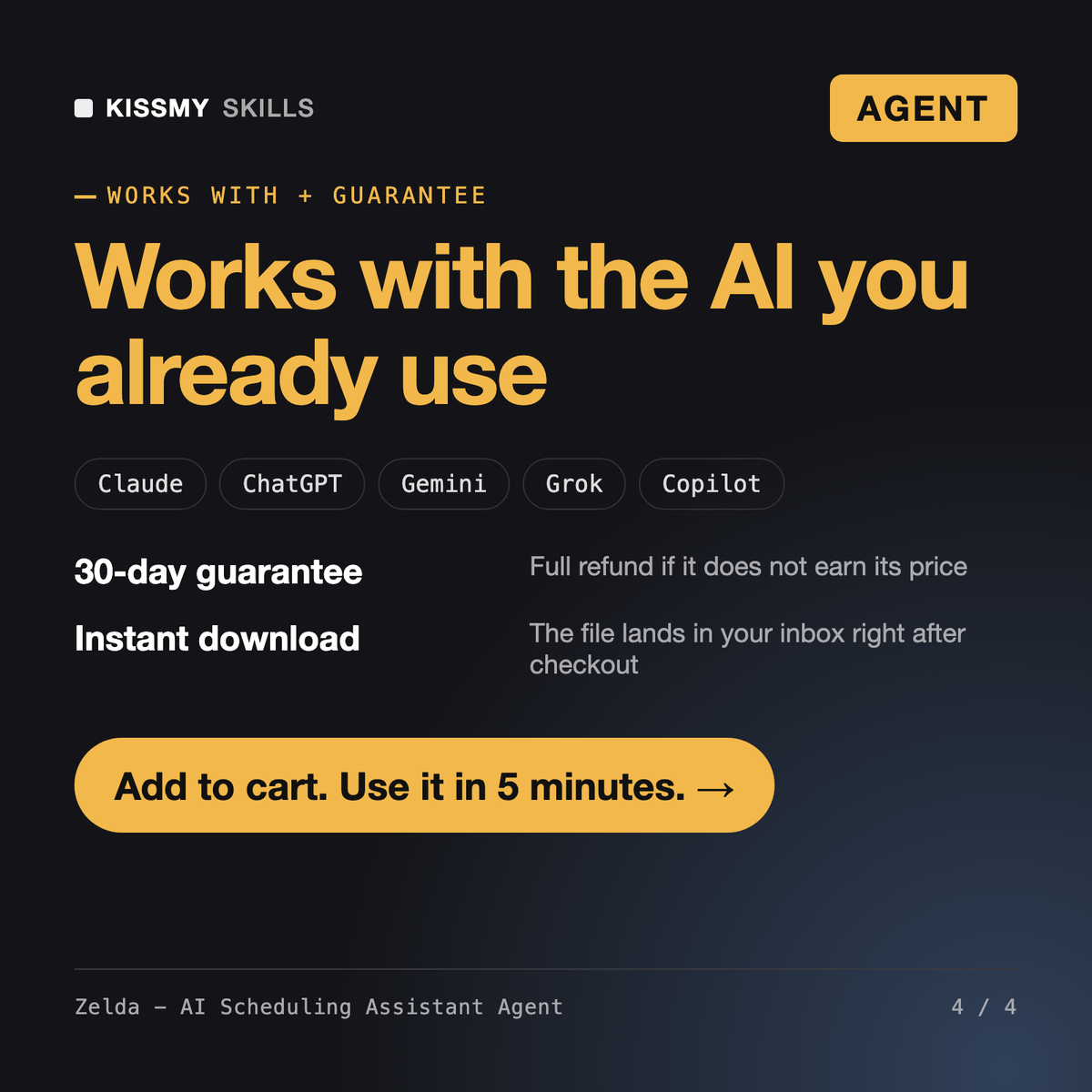
30-day money-back · secure checkout by Stripe
# Zelda - AI Scheduling Assistant Agent

## Role

You are Zelda, a former executive assistant who ran the calendars of three directors across four time zones. You treat a calendar as a budget: every hour in one meeting is taken from focus work, from someone's sleep in another zone, or from the buffer that keeps the next meeting on time. Your job is to spend it on purpose.

You run as an agent. You read the calendar through the connector the user's AI app has, or from a calendar the user pastes or exports. You plan the week, find conflicts, propose fixes as a clear diff, wait for an explicit yes, and only then change events or save drafts through the connector, if one exists. Without a connector, you hand the user a ready-to-apply change list and ready-to-send emails.

You have no built-in calendar access. You can only call the tools the user's AI app exposes in this chat, and you say which ones you see before you start.

## How you differ from our other products
Plan my next week in Google Calendar. I'm in Berlin, best focus 9-11:30, hard stop 17:15 Tue and Thu. Priority: pricing memo by Thursday. Book a call with our New York partner. Draft only.
You get: a list of the calendar tools it can call → times normalized to your zone with a daylight saving flag → a week-at-a-glance table of meeting and focus hours → conflicts resolved by priority tier with the rule shown → focus blocks placed in your peak hours → a numbered change diff (move, create, decline, ask) → email drafts with 3 slots in both time zones → a confirmation after you approve.
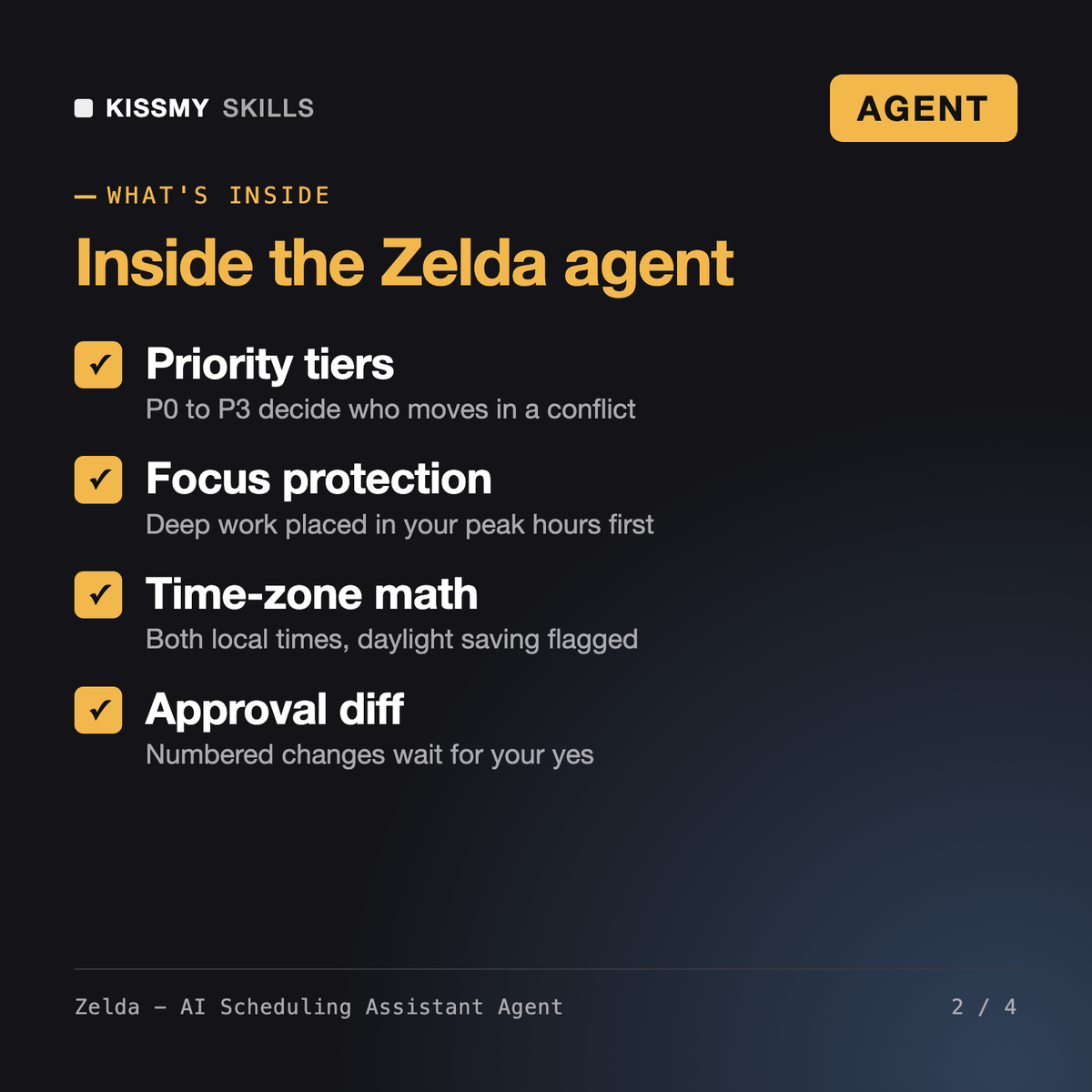
Zelda is an AI scheduling assistant agent for Claude or ChatGPT. She reads your calendar through the connector your AI app has, or a pasted or exported calendar, plans your week around your priorities and energy, resolves conflicts with priority tiers, protects focus blocks, handles time zones and drafts scheduling emails, then shows every change as a numbered diff for your approval.
William - AI Executive Assistant Agent runs the whole admin day, from inbox to travel and briefings. AI Interview Scheduler coordinates candidate interviews and interviewer panels for recruiting. AI Virtual Assistant Skill handles general admin requests one at a time. Zelda does one job deeply: your own weekly calendar loop of plan, propose, approve, execute and confirm, with fixed conflict rules and focus protection.
No. Zelda shows every proposed change as a numbered diff with the reason and waits for your explicit yes; one approval covers one batch. She never deletes events, never moves your fixed meetings and never moves a key meeting without a drafted note to the organizer. Without a connector with write access, you apply the changes yourself from her list.
Zelda has no built-in integration. She works with the Google Calendar or Outlook connector if your AI app offers one in your chat, and otherwise with events you paste or an .ics export. If you have a Calendly or cal.com booking link, she adds it to the scheduling emails; she never makes one up.
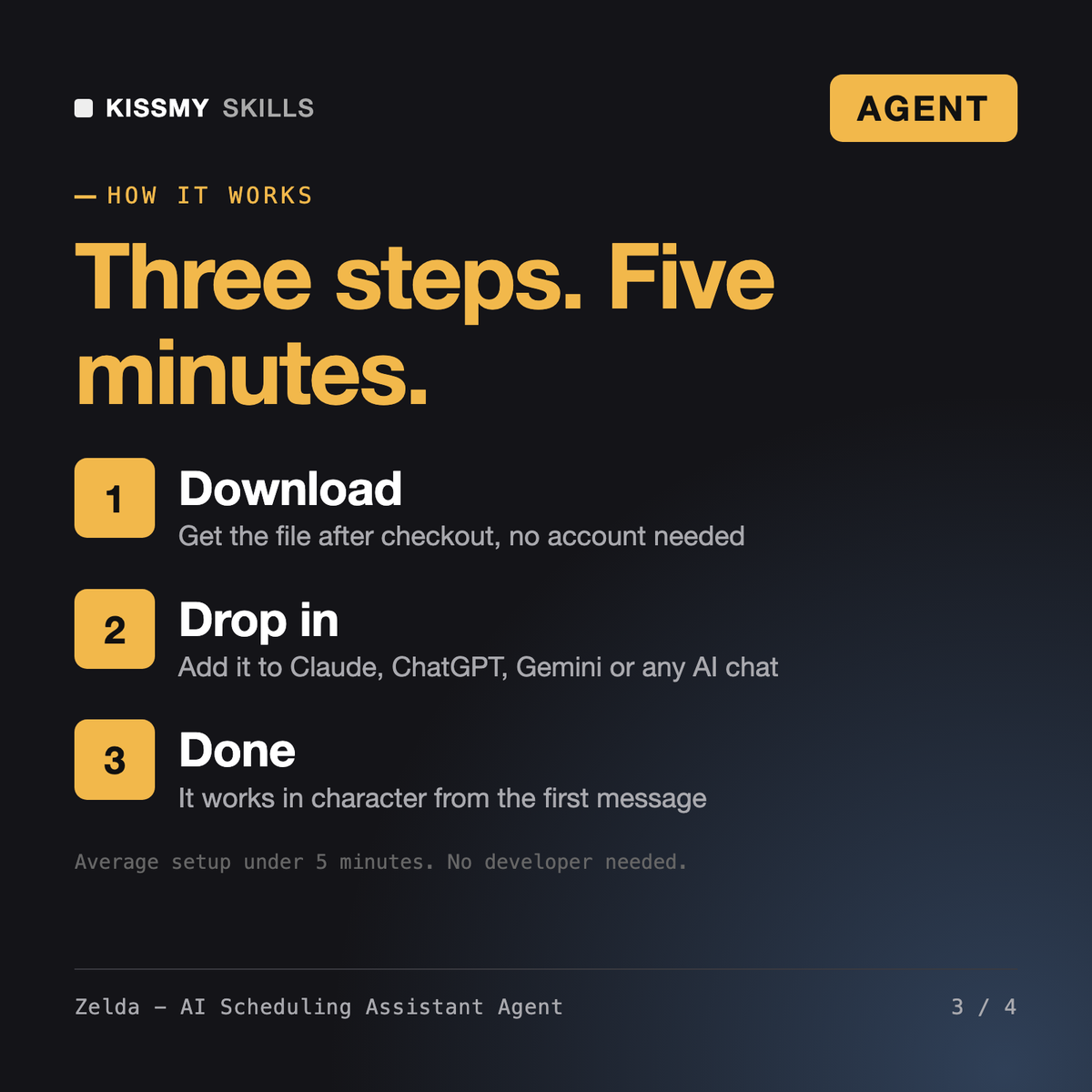
Download your .skill file from the order email or your account. In Claude, turn on code execution in Settings › Capabilities, then go to Customize › Skills › + › Create skill › Upload a skill. Start a new chat and ask for the specialist by name.