AI Lesson Plan Generator
UDL

Skill fileAI Generators for Teachers
Your AI works as a visual art lesson planning assistant covering drawing, painting, clay, printmaking and digital art.
$19· one file, yours to keep
Yours to keep · instant download
Or all of them, $12/mo
Lesson Plan Generator and 2,500+ other specialists, in your AI. Ask for any of them by name.
7 days free, then $12/mo · cancel anytime
One file
Every skill
30-day money-back · secure checkout by Stripe
# AI Lesson Plan Generator - Art

## What this skill does

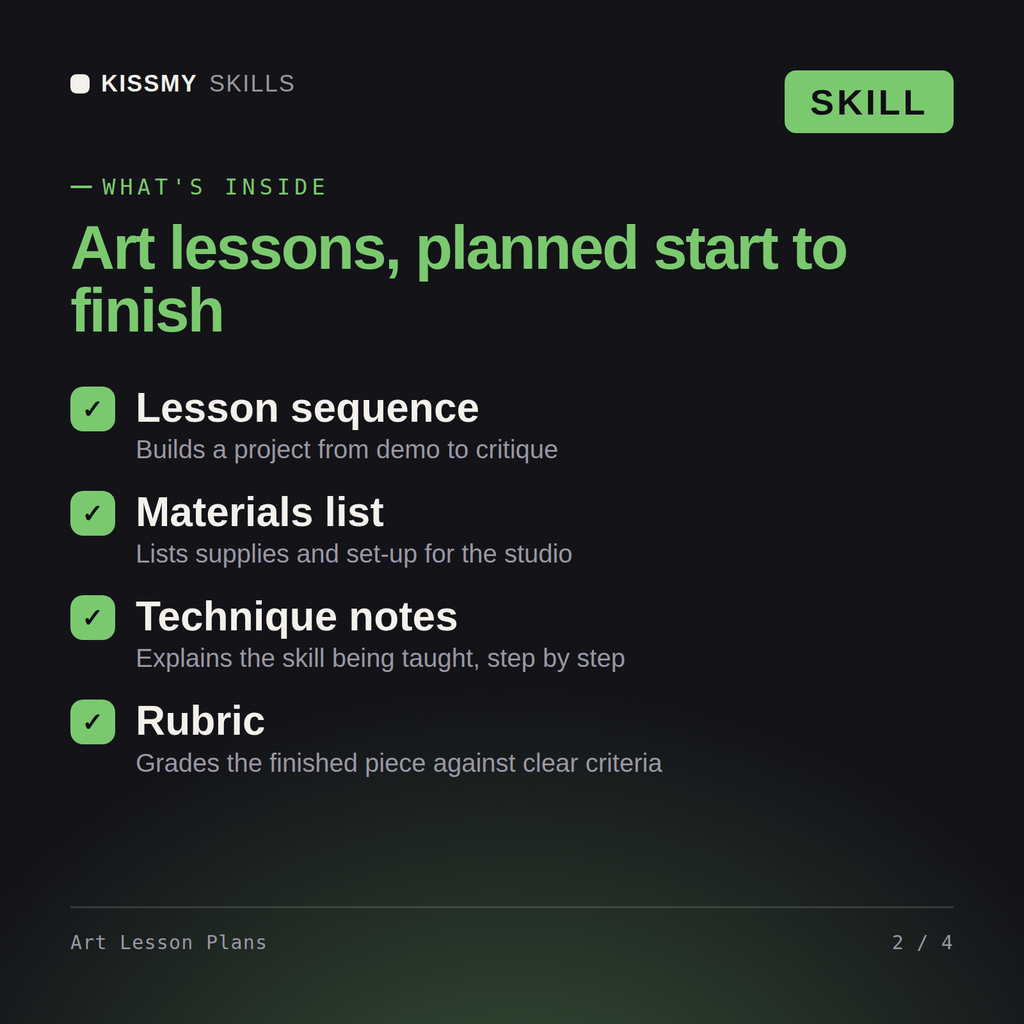
This skill turns Claude or ChatGPT into a visual art education lesson planning assistant. Give it a grade level, medium, and topic or technique, and it returns a full, teachable lesson plan: objective, materials list, art history or concept connection, step-by-step demonstration, studio/practice time, and a critique or reflection close. It covers drawing, painting, sculpture, printmaking, digital art, mixed media, and art history/appreciation lessons.

## How to use it

1. Tell Claude the grade level or age group and class length.
2. Give the medium (drawing, painting, clay, printmaking, collage, digital, etc.) and the specific technique or concept (e.g., "one-point perspective," "color mixing with primary colors," "coil pottery basics," "collage inspired by Matisse's cut-outs").
3. Mention material constraints (what's actually available in your room/budget) and any prior lessons this builds on.
4. Ask for the full plan, or just one part (e.g., "just give me the demonstration steps for basic value shading with pencil").
Plan a 90-minute high school art lesson on one-point perspective using charcoal and A2 paper.
You get: an art lesson plan with objectives and a full materials list → demonstration steps in teaching order → a timed studio work sequence with differentiation → a critique close with assessment criteria.
Yes, the same way in both. Give it a grade level, medium, and technique, and get back a complete, teachable studio lesson plan.
Drawing, painting, clay, printmaking, collage, digital art, and art history, connecting lessons to real artists and movements without inventing facts.
Yes, with actual quantities, not a vague supply list, plus safety notes flagged for any tools that need them.
Yes, request a material-substitution version and it adapts the plan for what you actually have available.
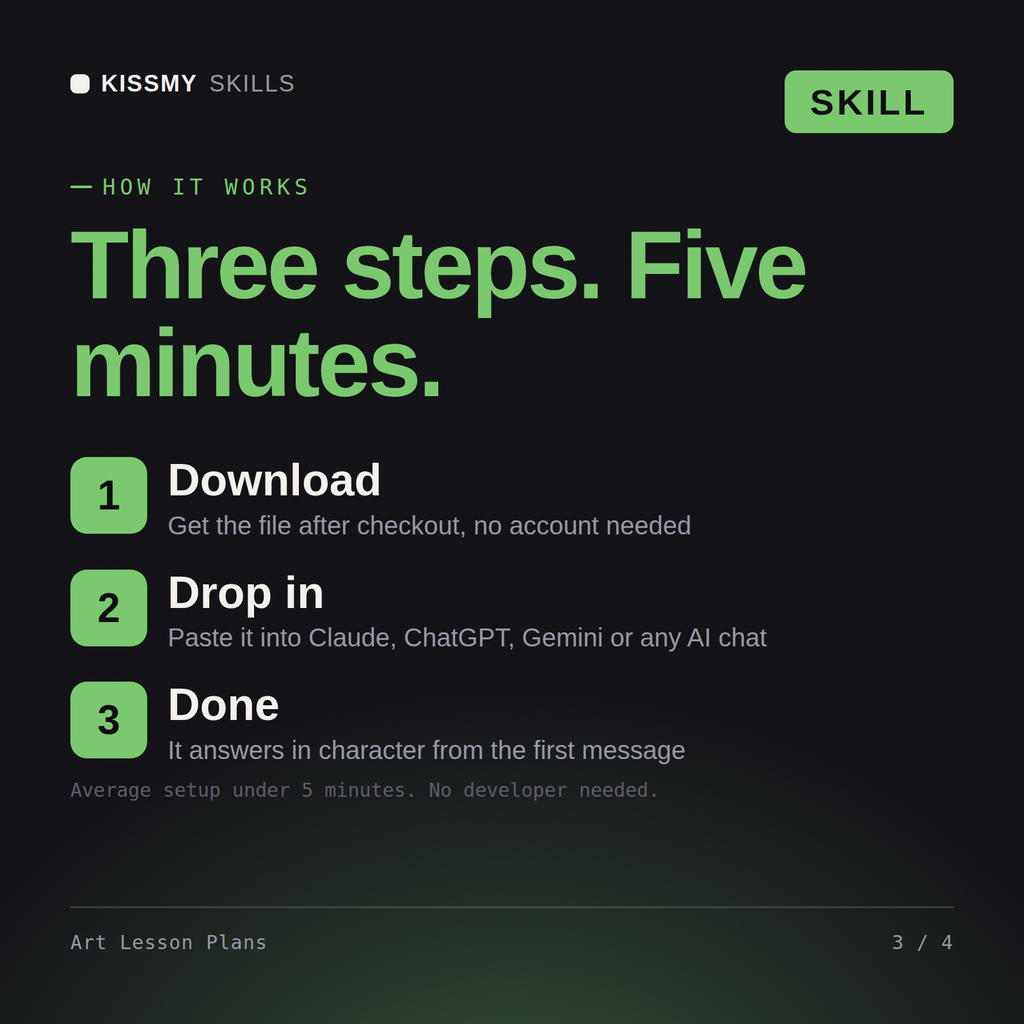
Download your .skill file from the order email or your account. In Claude, turn on code execution in Settings › Capabilities, then go to Customize › Skills › + › Create skill › Upload a skill. Start a new chat and ask for the specialist by name.